Liquidation
 0% interest for 6 months
 Профилактика
 DJI Spare Parts
 Extended warranty Drones.bg
 Sell your old drone and get cash now!


- 1 What is an attitude indicator?
- 2 How can I activate it?
- 3 What does the indicator show?
- 4 Flight position and wind direction
- 5 Setting the remote's antenna for a stable signal
- 5.1 Importance of colour signals
- 5.2 Align the remote's antenna for optimal signal
- 6 Check obstacle avoidance information
- 7 Determine drone position to assist manual return home
- 7.1 Direction adjustment
- 7.2 Safe landing
What is an attitude indicator?
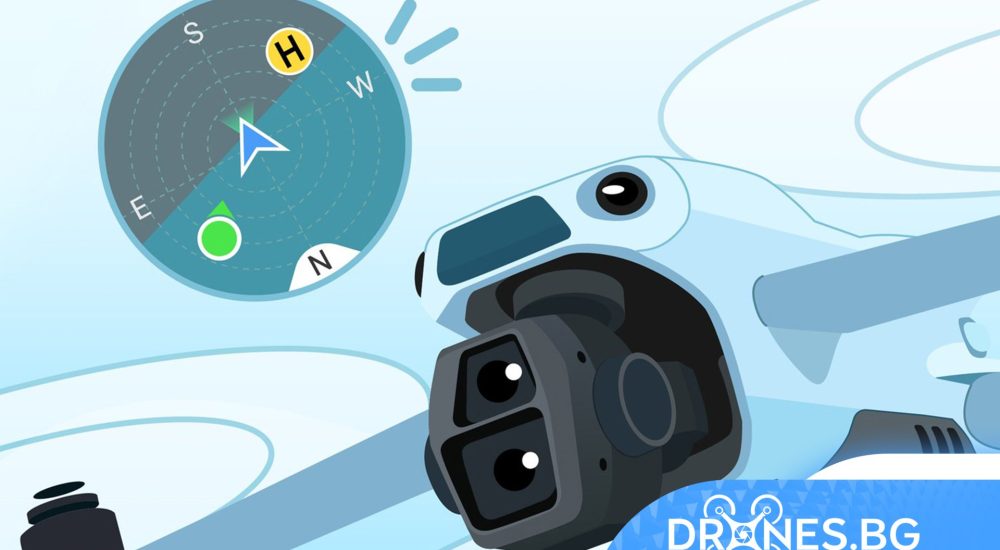
The attitude indicator is a visual tool that displays the position and tilt changes of the drone. It helps us to understand the spatial relationship between the drone, the remote control and the starting point, as well as to judge the direction and strength of the wind, thus reducing the risk of accidents during flight.
How can I activate it?
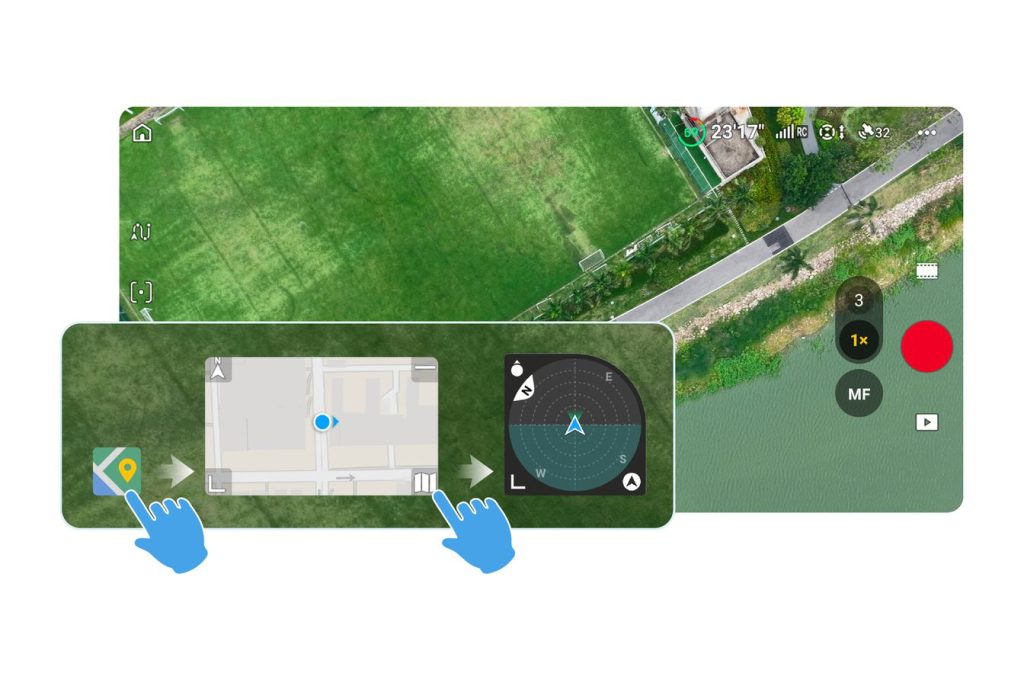
In the camera view in the app DJI Fly, tap the map icon in the bottom left corner to zoom in, then tap the expanded map icon in the bottom right corner of the map to switch to the position indicator.
What does the indicator show?

Flight position and wind direction
1. Flight position display – the current flight position of the drone can be determined by the slope of the blue area.

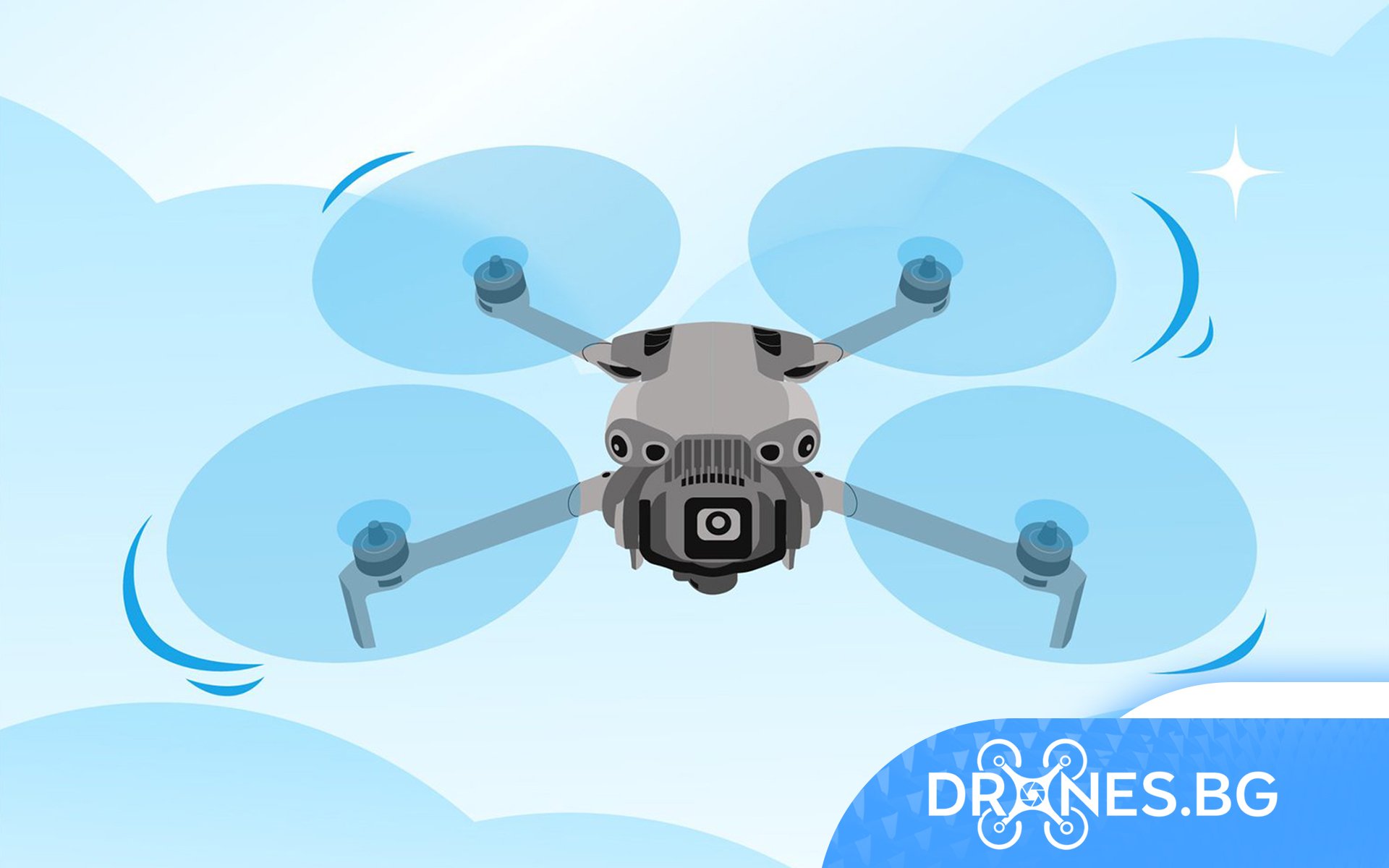
2. Determining the wind direction – When the drone is hovering in place, the blue area tilts towards the direction the wind is coming from. You can determine the exact wind direction using the compass.
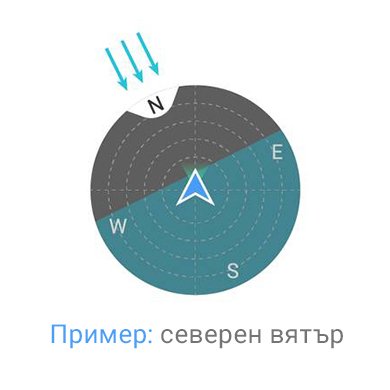
3. Determining Wind Strength – When the drone is hovering in place, the wind strength can be estimated by comparing the blue area with the broken rings. As shown below, the more rings the blue area covers, the stronger the wind*.
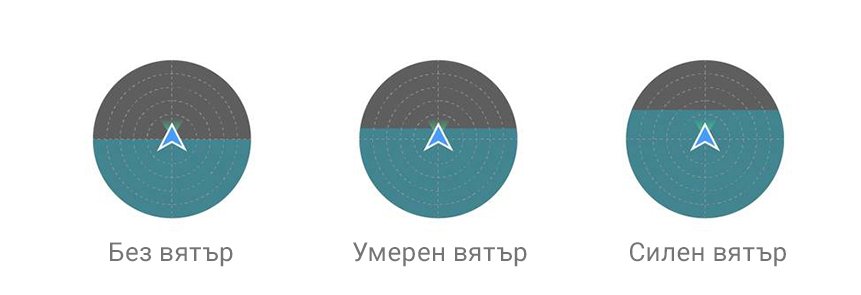
* It is not recommended to fly in strong winds. Please land the drone when the wind is strong.
Setting the remote's antenna for a stable signal
Importance of colour signals
- Blue – the signal is connected;
- Green – strongest signal;
- Grey – lost signal;
Align the remote's antenna for optimal signal
Using the position indicator, the pilot can adjust his position so that the arrow on the remote control points towards the drone for stable signal transmission.

Tips:
- Align the wide side of the remote's antenna to the drone for optimal signal transmission.
- If the remote icon is obscured by other items, switch to remote-centered display mode and check again.
Check obstacle avoidance information
Darker colors indicate the drone is close to obstacles; lighter colors mean the obstacles are farther away. Obstacles more than five meters away are not displayed.

During flight, pay attention to obstacle alerts in the attitude indicator and camera view when performing obstacle avoidance manoeuvres.

Tip:
The obstacle information on the position indicator depends on the obstacle avoidance settings of the drone. For example, if the drone is only equipped with front sensors, only obstacle information from the front will be displayed. Take into account the actual situation.
Determine drone position to assist manual return home
Direction adjustment
When a manual return home is required, elevate the drone to a safe altitude for RTH, then carefully adjust the control sticks so that the drone's arrow points to the home point according to the attitude indicator. Once aligned, perform a manual RTH.

Safe landing
When the position of the drone coincides with the start point of the position indicator, rotate the gimbal camera 90° down to observe the landing area. Commence landing once you are satisfied that it is safe.

Remark: Plan the return route (RTH) according to the environment. Avoid tall buildings, mountains, forests and other areas that may affect flight safety. The method described is for visual orientation in clear airspace only during the final stage of landing.










 Discounts
 0% interest for 6 months
 Vouchers

 All DJI Drones
 DJI Lito
 DJI Mini 5 Pro
 DJI Neo 2
 DJI Neo
 DJI Avatar 360
 DJI Avatar 2
 DJI Mavic 3 Pro
 DJI Air 2S
 DJI Avatar
 DJI FPV
 DJI Mini 3 Pro
 DJI Care Refresh Plans
 DJI Matrix 4
 DJI Matrice 400
 DJI Dock
 DJI Mavic 3 Enterprise
 DJI FLYCART 30
 DJI FlyCart 100 CARGO TRANSPORT DRONE
 Software for industrial drones
 Professional cameras
 Antigravity A1
 Kids drones
 Kids drones
 Drone batteries
 Drone housings
 Drone legs
 Motors/Gears
 Drone Fins / Propellers
 Fin guards
 Chargers
 FPV drones
 FPV drones
 FPV parts
 FPV видео антени
 Аналогови FPV камери
 FPV Батерии
 Аналогови VTX
 Digital FPV systems
 Кабели и конектори
 FPV Зарядни
 Tools
Tools Крепежни елементи
 FPV Мотори
 FPV Перки
 Радио Приемници и Антени
 Дистанционни и модули
 FPV Рамки
 FC / ESC / Stacks
 FPV GPS Модули
 FPV Чанти и кейсове
 Airplanes
 Simulators
 DJI Osmo 360
 DJI Osmo Action 6
 DJI Osmo Action 4
 DJI Mic Mini 2S
 DJI Osmo Pocket 4/4Pro
 DJI Osmo Pocket 3
 DJI Osmo Mobile 8/8P
 DJI Osmo Mobile 7
 DJI Ronin RS 4 PRO
 DJI Ronin RS 3 Pro
 DJI RS3 Mini
 DJI Ronin 4D
 Insta360 X6
 Insta360 Luna
 Insta360 X4
 Insta360 Flow 2 Pro
 Insta360 GO 3/3S
 Other insta360 cameras
 Spare parts for DJI Tello
 Spare parts for DJI NEO / NEO 2
 Spare parts for Dji Air 3 / 3S
 Spare parts for DJI Avata / Avata 2
 Spare parts for DJI Spark

 Drone football (DroneBALL)